
Notifications Overview
YipYap delivers alert notifications through a wide range of channels. Each channel can be used in escalation policies to reach your team wherever they are.
Setup Guide
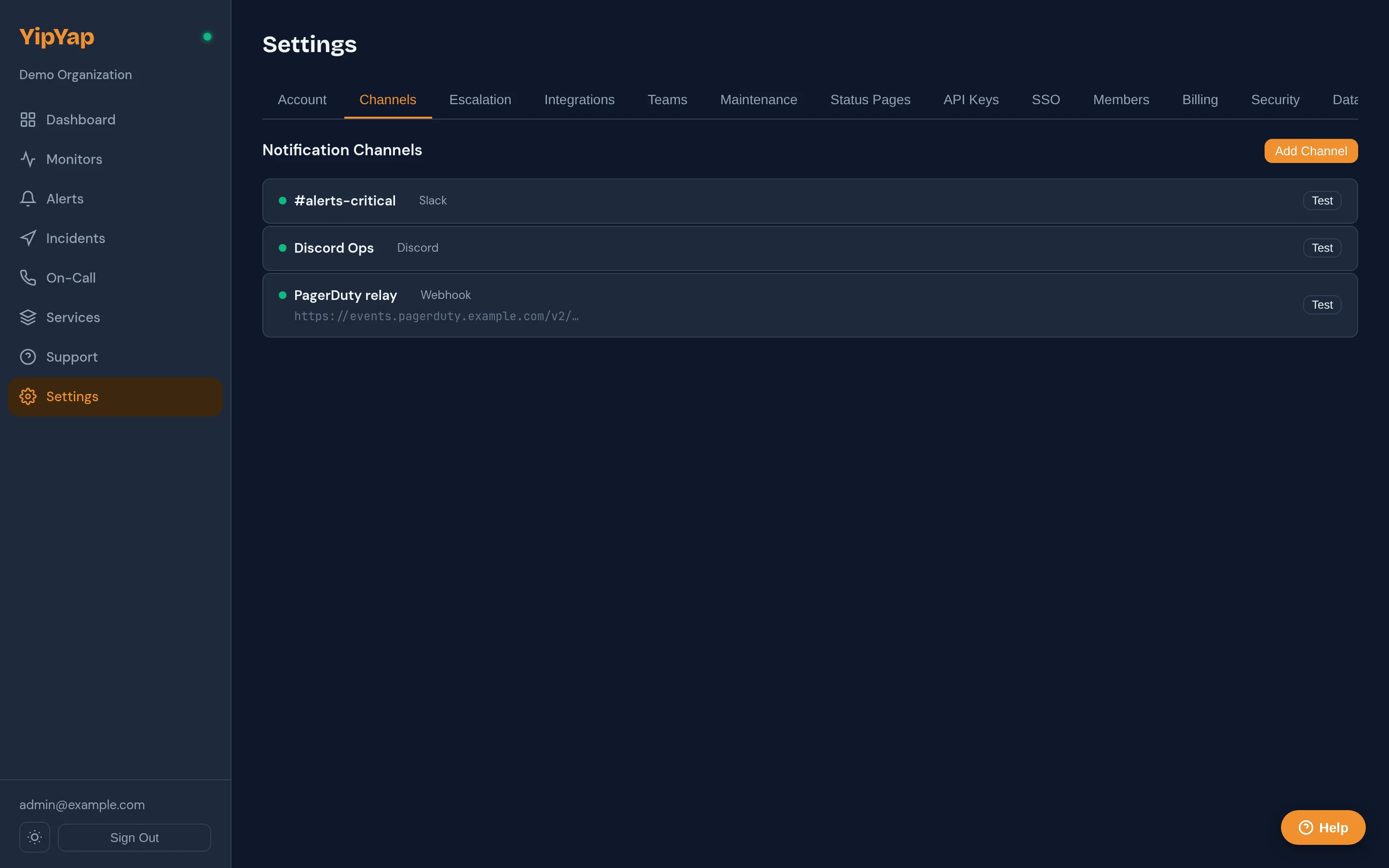
Section titled “Setup Guide”- Navigate to Settings > Notifications.
- Click Add Channel and select your channel type (Slack, Discord, email, etc.).
- Fill in the required fields for the channel. Each type has its own configuration (webhook URL, SMTP credentials, API key, etc.).
- Enter a descriptive name for the channel (e.g. “Production Slack Alerts”, “Ops Team Email”).
- Click Test to send a sample notification and verify delivery.
- Click Save.
- Reference the channel in an escalation policy step to start receiving alerts through it.
Supported Channels
Section titled “Supported Channels”| Channel | Interactive Buttons | Setup Guide |
|---|---|---|
| Slack | Yes | Slack |
| Discord | Yes | Discord |
| Telegram | Yes | Telegram |
| Email (SMTP) | No | |
| SMS | No | SMS |
| Voice Call | No | Voice |
| Webhooks | Varies | Webhooks |
| ntfy.sh | No | ntfy |
| Pushover | No | Pushover |
Interactive Buttons
Section titled “Interactive Buttons”Channels that support interactive buttons allow your team to acknowledge and resolve alerts directly from the notification, without opening the YipYap dashboard. Slack, Discord, and Telegram all support this.
Configuration
Section titled “Configuration”All notification channels are managed under Settings > Notifications. Each channel requires its own credentials and configuration. You can create multiple instances of the same channel type (e.g. separate Slack channels for different teams).
Test Notifications
Section titled “Test Notifications”After configuring a channel, click Send Test to verify that notifications are delivered correctly. The test sends a sample alert notification so you can confirm formatting and delivery.
Notification Content
Section titled “Notification Content”Every notification includes:
- Monitor name and status.
- The time the alert fired.
- A link to the alert in the YipYap dashboard.
- Acknowledge and resolve buttons (where supported).