
On-Call Schedules
On-call schedules define which team members are responsible for responding to alerts during specific time periods. Escalation policies reference these schedules to route alerts to whoever is currently on call.
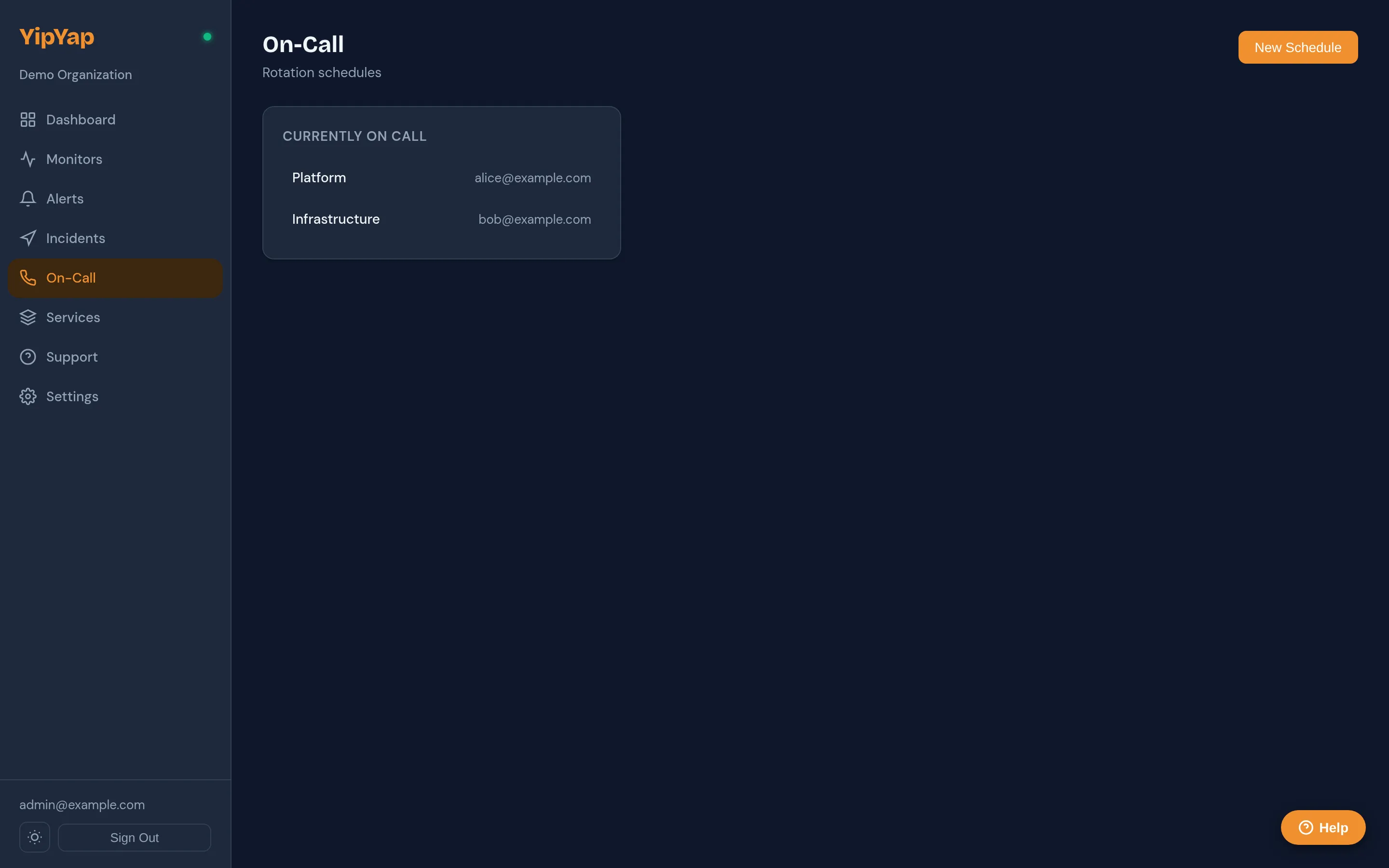
Setup Guide
Section titled “Setup Guide”- Navigate to Alerting > On-Call Schedules and click New Schedule.
- Enter a descriptive name (e.g. “Backend Weekday On-Call”).
- Select a rotation type:
daily,weekly, orcustom_hours. - Add participants by selecting team members from the dropdown.
- Set the
handoff_time(e.g. 09:00),effective_fromdate, andtimezonefor the schedule. - Optionally add a second layer for weekend or holiday coverage.
- Click Save, then reference this schedule in an escalation policy step.
Creating a Schedule
Section titled “Creating a Schedule”- Navigate to Alerting > On-Call Schedules.
- Click New Schedule.
- Enter a name (e.g. “Backend Weekday On-Call”).
- Add participants and configure the rotation.
Rotation Types
Section titled “Rotation Types”| Type | Description |
|---|---|
daily | Each participant takes one day, then hands off to the next. |
weekly | Each participant takes one week, then hands off to the next. |
custom_hours | Define custom shift lengths using rotation_interval_hours (e.g. 12 hours, 72 hours). |
Schedule Fields
Section titled “Schedule Fields”Each schedule has the following key fields:
handoff_time: The time of day when the on-call rotation hands off to the next participant (e.g.09:00).effective_from: The date when the schedule becomes active.timezone: The timezone used to interpret the handoff time and rotation boundaries.
Schedule Layers
Section titled “Schedule Layers”You can stack multiple layers in a single schedule. For example:
- Layer 1: Primary on-call rotation (weekly).
- Layer 2: Weekend override rotation (custom, Saturday and Sunday only).
Higher layers take priority over lower layers. This lets you define a base rotation and then overlay exceptions.
Overrides
Section titled “Overrides”Overrides let you temporarily replace the scheduled on-call person with someone else. Use overrides for:
- Covering a teammate who is out sick.
- Swapping shifts between team members.
- Handling planned absences.
To create an override, click Add Override on the schedule page and fill in the following fields:
user_id: The replacement team member.start_at: When the override begins.end_at: When the override ends.reason: A short explanation for the override (e.g. “vacation cover”).
Viewing the Schedule
Section titled “Viewing the Schedule”The schedule view displays a calendar showing who is on call at any given time. You can view by day, week, or month. The current on-call person is highlighted.
Linking to Escalation Policies
Section titled “Linking to Escalation Policies”To use an on-call schedule in an escalation policy, add a step that targets the schedule. YipYap will automatically notify whoever is currently on call at the time the alert fires.