
Security (MFA)
YipYap supports multi-factor authentication (MFA) to protect your account against unauthorized access.
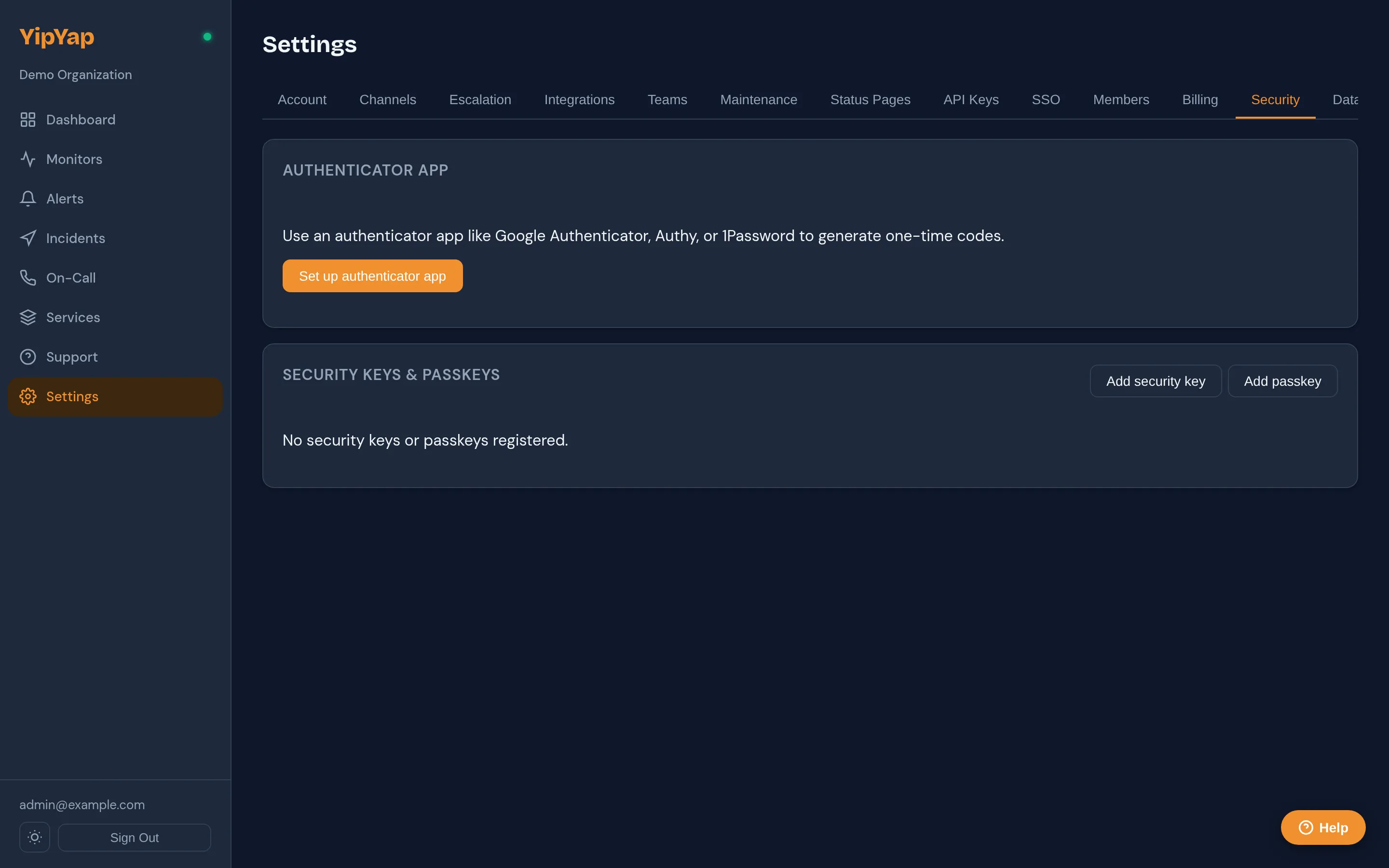
Setup Guide
Section titled “Setup Guide”- Navigate to Settings > Security > MFA.
- Click Add TOTP to set up time-based one-time passwords, or click Add Security Key / Add Passkey for hardware-based authentication.
- For TOTP: scan the QR code with your authenticator app (Google Authenticator, Authy, 1Password, etc.) and enter the six-digit code to verify.
- For WebAuthn: follow the browser prompt to register your security key or passkey.
- Save the recovery codes displayed on screen. Store them in a password manager or other secure location.
- Optionally, enable organization-wide MFA enforcement under MFA Policy to require all members to enroll.
MFA Methods
Section titled “MFA Methods”| Method | Description |
|---|---|
| TOTP | Time-based one-time passwords via an authenticator app. |
| WebAuthn | Hardware security keys (YubiKey, etc.). |
| Passkeys | Platform authenticators (Touch ID, Windows Hello, etc.). |
You can enable multiple methods simultaneously for flexibility.
Setting Up TOTP
Section titled “Setting Up TOTP”- Go to Settings > Security > MFA.
- Click Add TOTP.
- Scan the QR code with your authenticator app (Google Authenticator, Authy, 1Password, etc.).
- Enter the six-digit code to verify.
- Save the recovery codes shown on screen.
Setting Up WebAuthn / Passkeys
Section titled “Setting Up WebAuthn / Passkeys”- Go to Settings > Security > MFA.
- Click Add Security Key or Add Passkey.
- Follow the browser prompt to register your device.
- Name the key for easy identification (e.g. “YubiKey 5”, “MacBook Touch ID”).
Recovery Codes
Section titled “Recovery Codes”When you enable MFA, YipYap generates a set of single-use recovery codes. Store these in a safe place (password manager, printed copy in a secure location). Each code can be used once to sign in if you lose access to your MFA device.
To regenerate recovery codes, go to Settings > Security > MFA > Recovery Codes > Regenerate. This invalidates all previous codes.
Organization Enforcement
Section titled “Organization Enforcement”Organization owners and admins can require MFA for all members:
- Go to Settings > Security > MFA Policy.
- Enable Require MFA for all members.
- Set a grace period (e.g. 7 days) for existing members to enroll.
After the grace period, members without MFA will be unable to access the organization until they enroll.
Session Management
Section titled “Session Management”Under Settings > Security > Sessions, you can:
- View all active sessions (device, location, last active time).
- Revoke individual sessions.
- Revoke all sessions except the current one.