
Team Management
YipYap organizations support multiple team members with role-based access control.
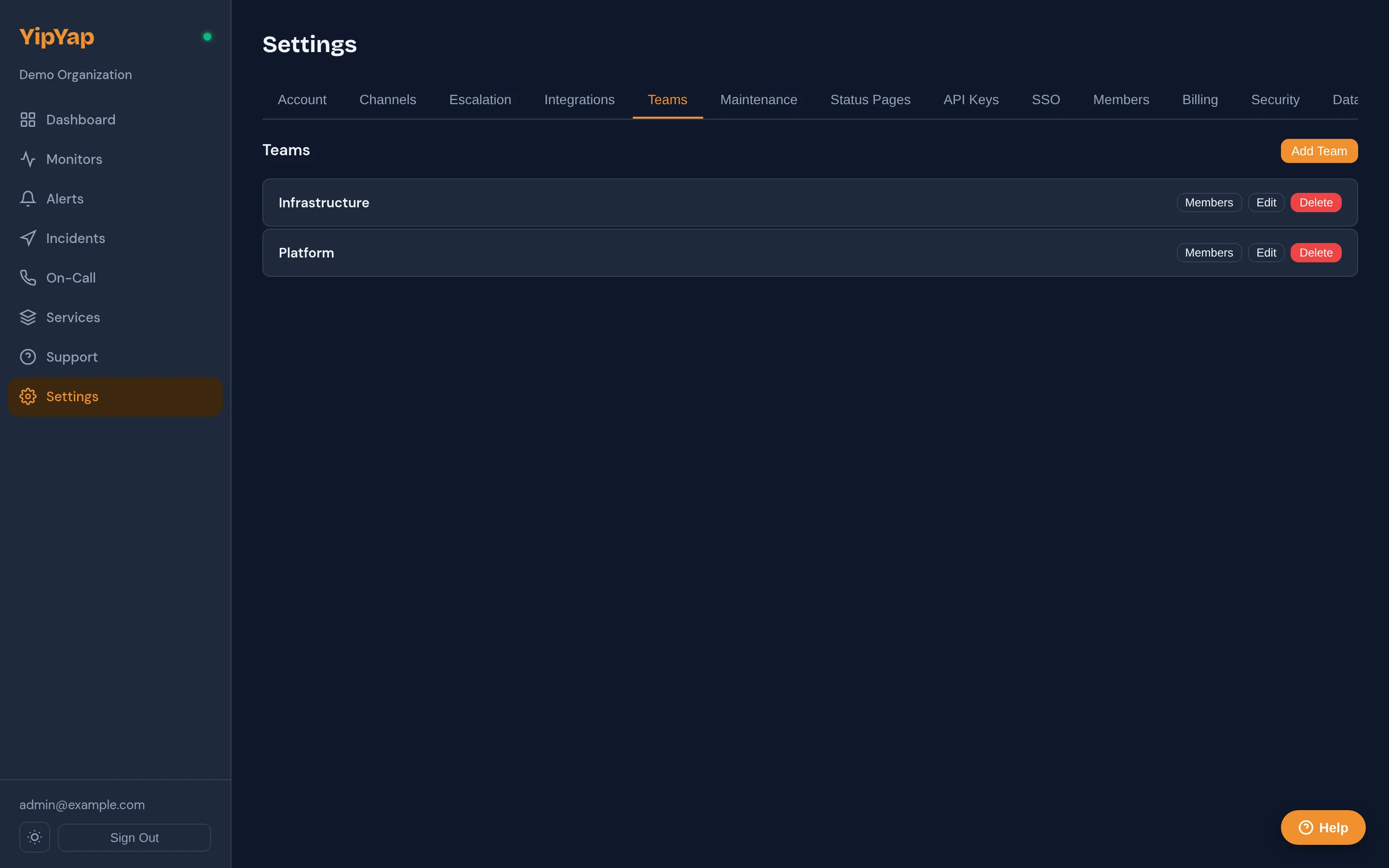
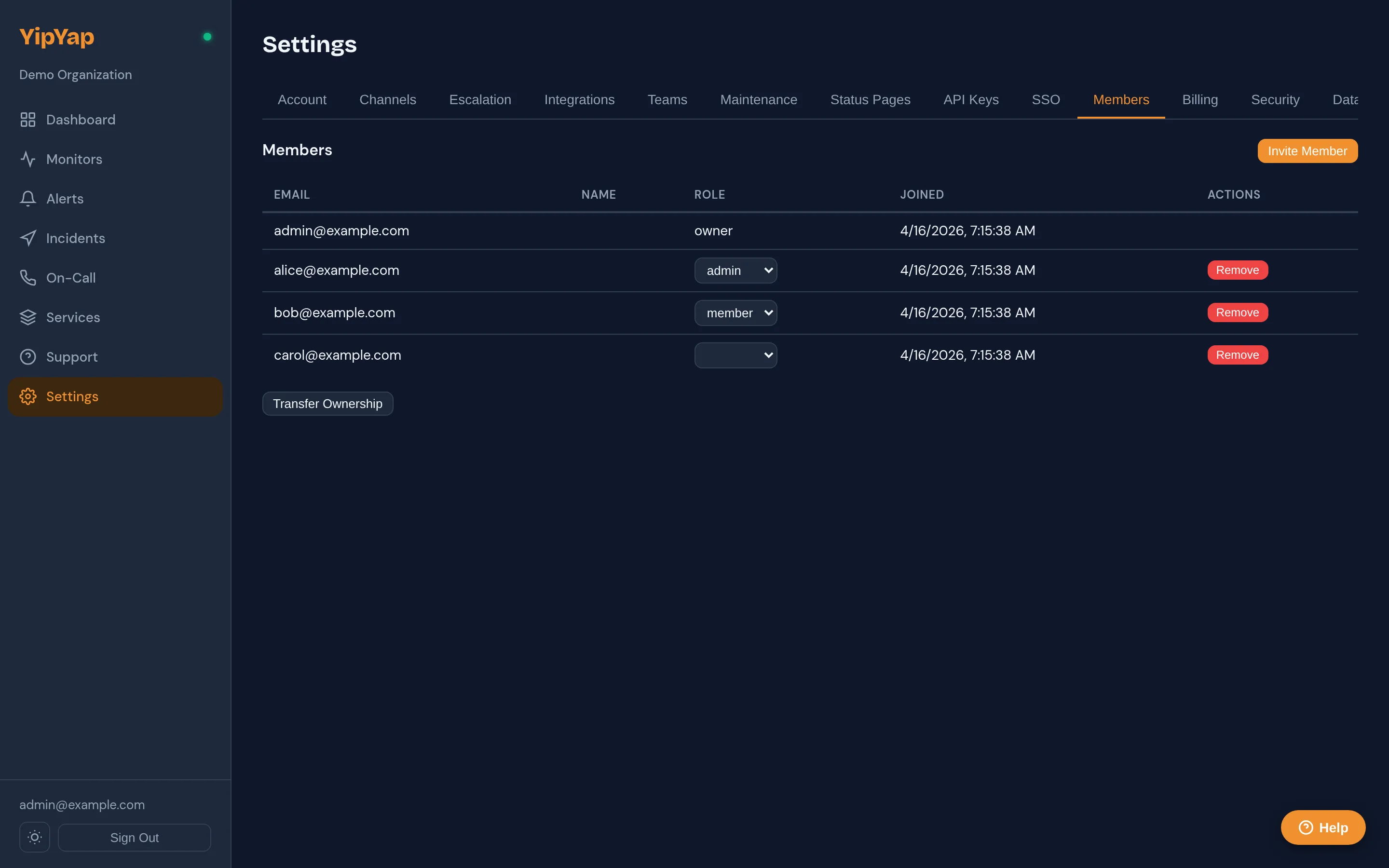
Setup Guide
Section titled “Setup Guide”- Navigate to Settings > Team.
- Click Invite Member and enter the new member’s email address.
- Select the appropriate role (Owner, Admin, Member, or Viewer). Start with the least privileged role that allows the person to do their job.
- Click Send Invite. The invited user receives an email with a link to join.
- Once the member joins, verify their role in the team list and adjust if needed.
Team Creation
Section titled “Team Creation”Every YipYap account starts as an organization with one member (the owner). To add team members:
- Navigate to Settings > Team.
- Click Invite Member.
- Enter the email address.
- Select a role.
- Click Send Invite.
The invited user receives an email with a link to join your organization.
| Role | Permissions |
|---|---|
| Owner | Full access. Can manage billing, delete the organization. |
| Admin | Can manage monitors, policies, channels, and members. |
| Member | Can create and edit monitors, acknowledge and resolve alerts. |
| Viewer | Read-only access to dashboards and alert history. |
Each organization has exactly one owner. The owner role cannot be removed, only transferred to another member.
Changing Roles
Section titled “Changing Roles”- Go to Settings > Team.
- Click the role dropdown next to a member’s name.
- Select the new role.
Role changes take effect immediately.
Removing Members
Section titled “Removing Members”- Go to Settings > Team.
- Click the remove button next to the member you want to remove.
- Confirm the removal.
Removed members lose all access immediately. Their historical actions (alert acknowledgments, configuration changes) remain in the audit log.
Transfer Ownership
Section titled “Transfer Ownership”To transfer ownership to another member:
- Ensure the target member has the Admin role (ownership can only be transferred to admins).
- Go to Settings > Team.
- Click Transfer Ownership.
- Select the new owner.
- Confirm with your password (and MFA code if enabled).
You will be demoted to the Admin role after the transfer.
Member Limits
Section titled “Member Limits”The Free plan supports up to 5 team members. Pro and Enterprise plans support the number of seats included in your subscription.