
Escalation Policies
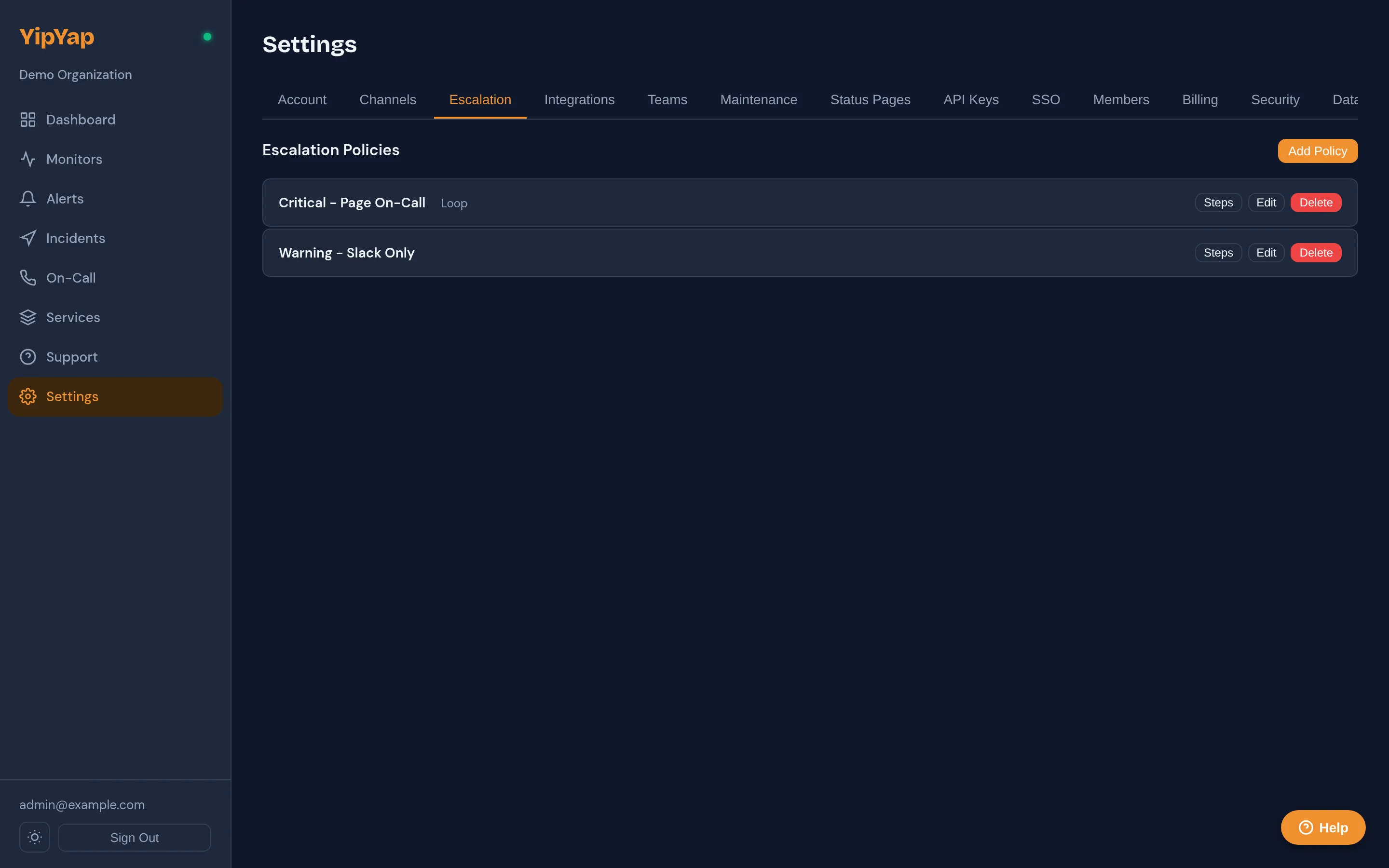
An escalation policy is a sequence of notification steps that YipYap follows when a monitor fires an alert. Each step defines who to notify and how long to wait before moving to the next step.
Setup Guide
Section titled “Setup Guide”- Navigate to Alerting > Escalation Policies and click New Policy.
- Enter a descriptive name (e.g. “Production Backend Escalation”).
- Add your first step: select a notification channel, specific user, or on-call schedule as the target.
- Set the wait duration for the step (e.g. 5 minutes). This is how long YipYap waits before moving to the next step if the alert is not acknowledged.
- Add additional steps as needed, increasing urgency with each step (e.g. Slack first, then SMS, then voice call).
- Enable Loop if you want the policy to restart from step 1 after all steps are exhausted.
- Click Save, then assign the policy to one or more monitors.
Creating a Policy
Section titled “Creating a Policy”- Navigate to Alerting > Escalation Policies.
- Click New Policy.
- Give the policy a descriptive name (e.g. “Backend Team Escalation”).
- Add one or more steps.
Step Types
Section titled “Step Types”Each step in a policy can target one or more of the following:
| Target type | Description |
|---|---|
on_call_primary | The primary on-call person from a schedule. |
on_call_secondary | The secondary (backup) on-call person from a schedule. |
user | A specific team member by name. |
team | An entire team - all members are notified. |
channel | A specific notification channel (Slack, email, webhook, etc.). |
Step Configuration
Section titled “Step Configuration”Each step has the following fields:
position: The order of the step in the policy (starting from 1).wait_seconds: How long to wait after this step before proceeding to the next. Defaults to 300 (5 minutes).repeat_count: How many times to repeat this step if the alert is still unacknowledged. Defaults to 1.repeat_interval_seconds: How long to wait between repeats of this step.is_terminal: Whether this is the final step in the policy. If true, escalation stops after this step completes.
Looping
Section titled “Looping”Enable the loop option (boolean) to restart the policy from the first step after all steps have been exhausted. The policy will continue looping until the alert is acknowledged or resolved.
Set max_loops (integer) to limit how many times the policy restarts, preventing infinite notification cycles.
Example Policy
Section titled “Example Policy”A three-step escalation for a production service:
- Step 1: Notify the on-call engineer via Slack and SMS. Wait 5 minutes.
- Step 2: Notify the team lead via Slack and voice call. Wait 10 minutes.
- Step 3: Notify the engineering manager via email and SMS. Loop.
Assigning to Monitors
Section titled “Assigning to Monitors”After creating a policy, assign it to one or more monitors in the monitor’s settings under Escalation Policy. Each monitor can have exactly one escalation policy.
Best Practices
Section titled “Best Practices”- Start with a low-urgency channel (Slack) and escalate to higher-urgency channels (SMS, voice) in later steps.
- Keep wait durations short enough to respond quickly, but long enough to avoid overwhelming the on-call engineer.
- Always include a final step that loops, so alerts are never silently dropped.